How to Host WordPress for Free in 2026 (Complete Beginner's Guide)
How to host WordPress free with MS Host Launch a secure website in minutes without managing servers Deploy your website Configure your domain Manage your WordPress installation.

Learn how to host WordPress for free using MS Host. Deploy your website in minutes, configure your domain, manage your WordPress installation, and launch a secure website without managing servers.
Introduction
WordPress powers more than 40% of all websites on the internet, making it the world's most popular content management system (CMS).
From personal blogs and business websites to online stores and news portals, millions of websites rely on WordPress every day.
The biggest challenge isn't building a WordPress website.
It's hosting it.
Traditional WordPress hosting often requires purchasing hosting plans, configuring servers, installing WordPress manually, managing SSL certificates, and maintaining updates.
Fortunately, modern hosting platforms have simplified the entire process.
With MS Host, you can deploy a fully managed WordPress website in just a few clicks—without worrying about infrastructure.
In this guide, you'll learn how to host WordPress for free using MS Host.
Why Host WordPress on MS Host?
Installing WordPress manually usually requires:
- Purchasing hosting
- Configuring a web server
- Installing PHP
- Setting up a database
- Managing SSL certificates
- Updating WordPress
- Maintaining server security
MS Host removes all of this complexity.
With MS Host, you get:
- Free hosting plan
- One-click WordPress deployment
- Secure hosting
- Runtime management
- Custom domain support
- Easy dashboard management
- No server administration
You can focus on building your website while MS Host handles the infrastructure.
Getting Started with MS Host
Step 1: Create an Account
Visit MS Host and click Get Started.
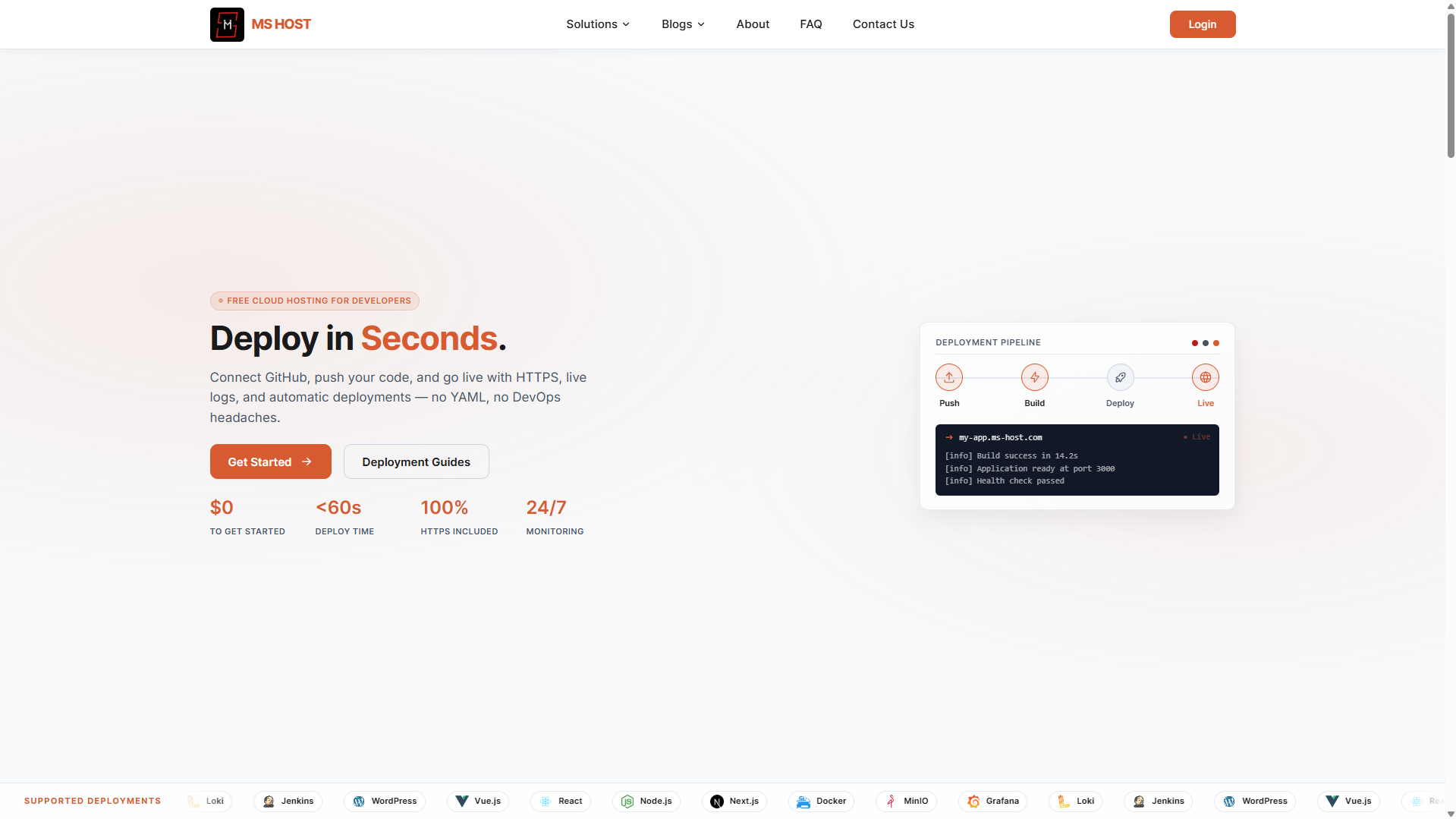
Create an account using:
- Email and password
- Continue with Google
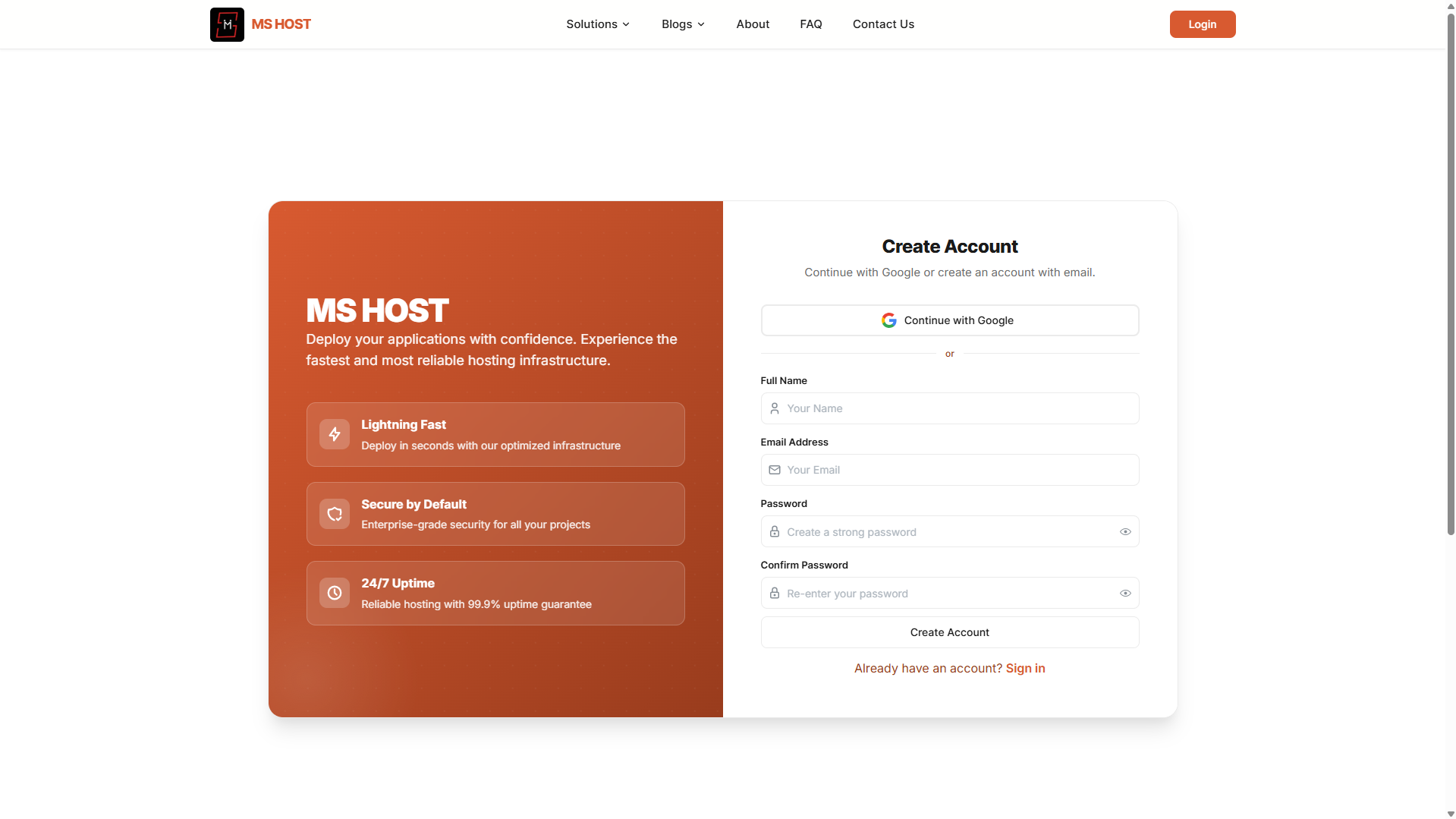
After signing in, you'll be redirected to your dashboard.
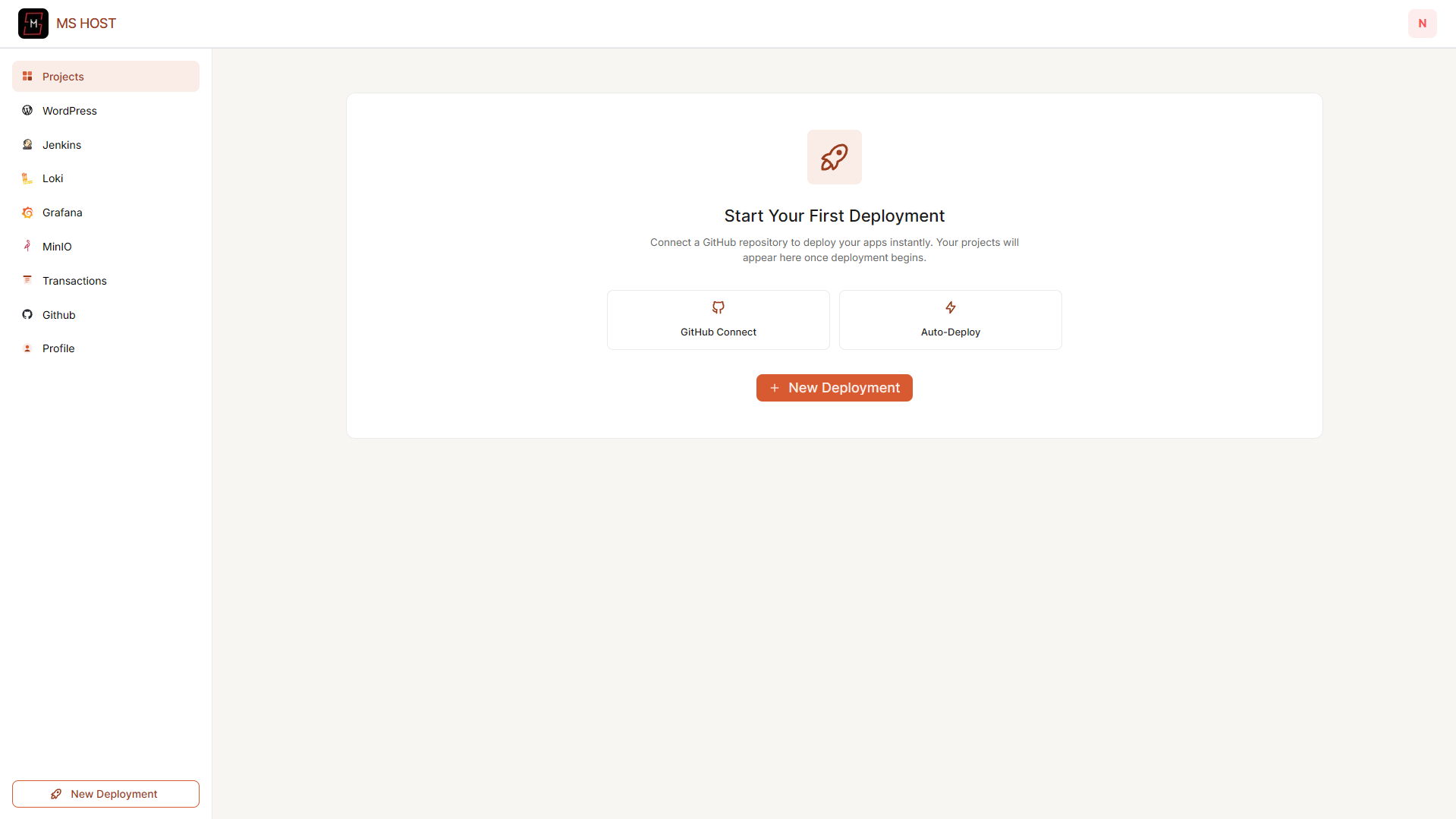
Step 2: GitHub Configuration (Optional)
The dashboard includes a GitHub Configuration section for managing repository integrations.
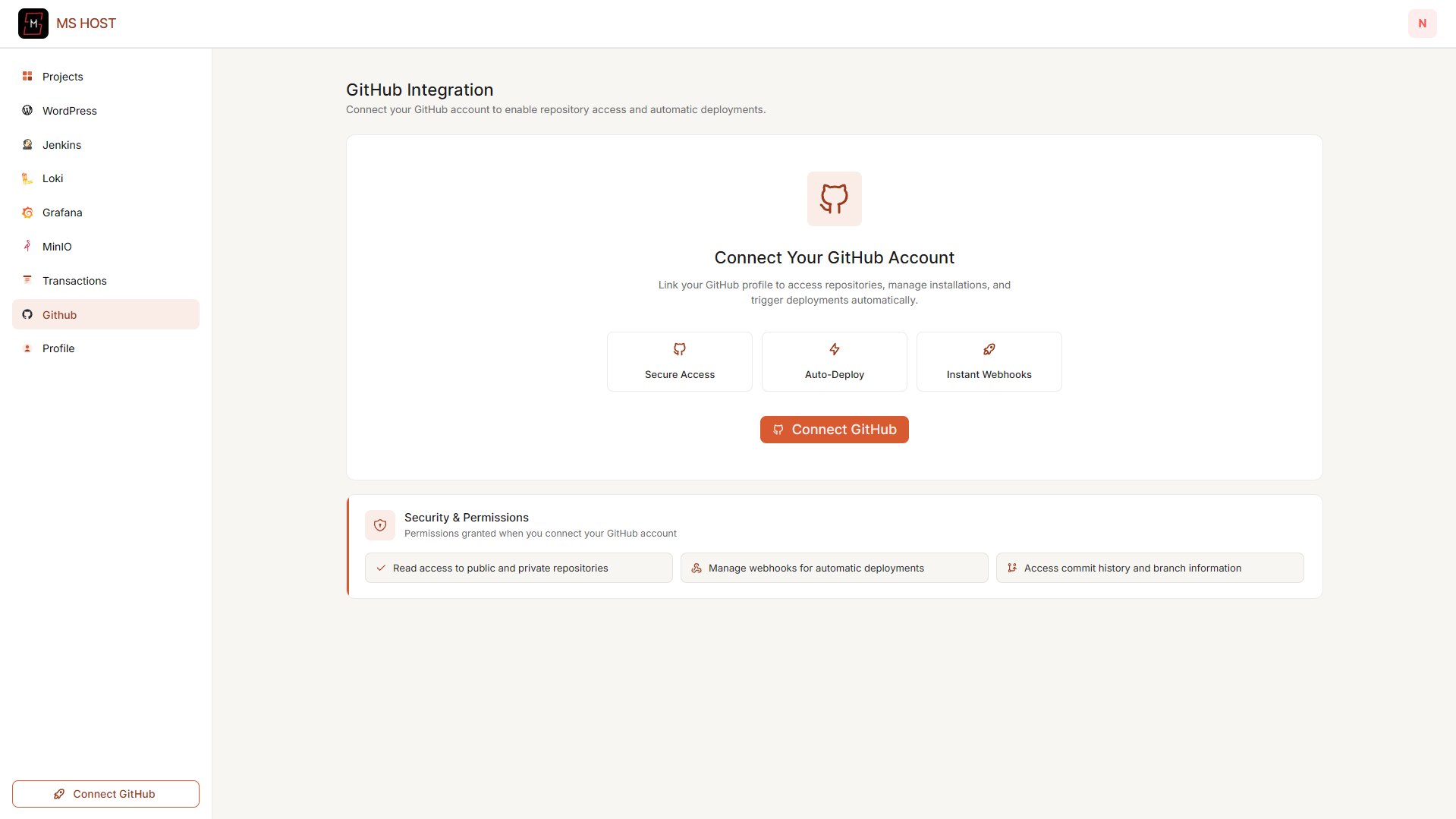
Although WordPress deployment doesn't require GitHub, connecting your account allows you to deploy other supported applications later.
Step 3: Open the WordPress Section
From the dashboard sidebar, select:
WordPress
If this is your first deployment, you'll see the following:
Create Your First WordPress Website
Click:
Create WordPress Website
to begin.
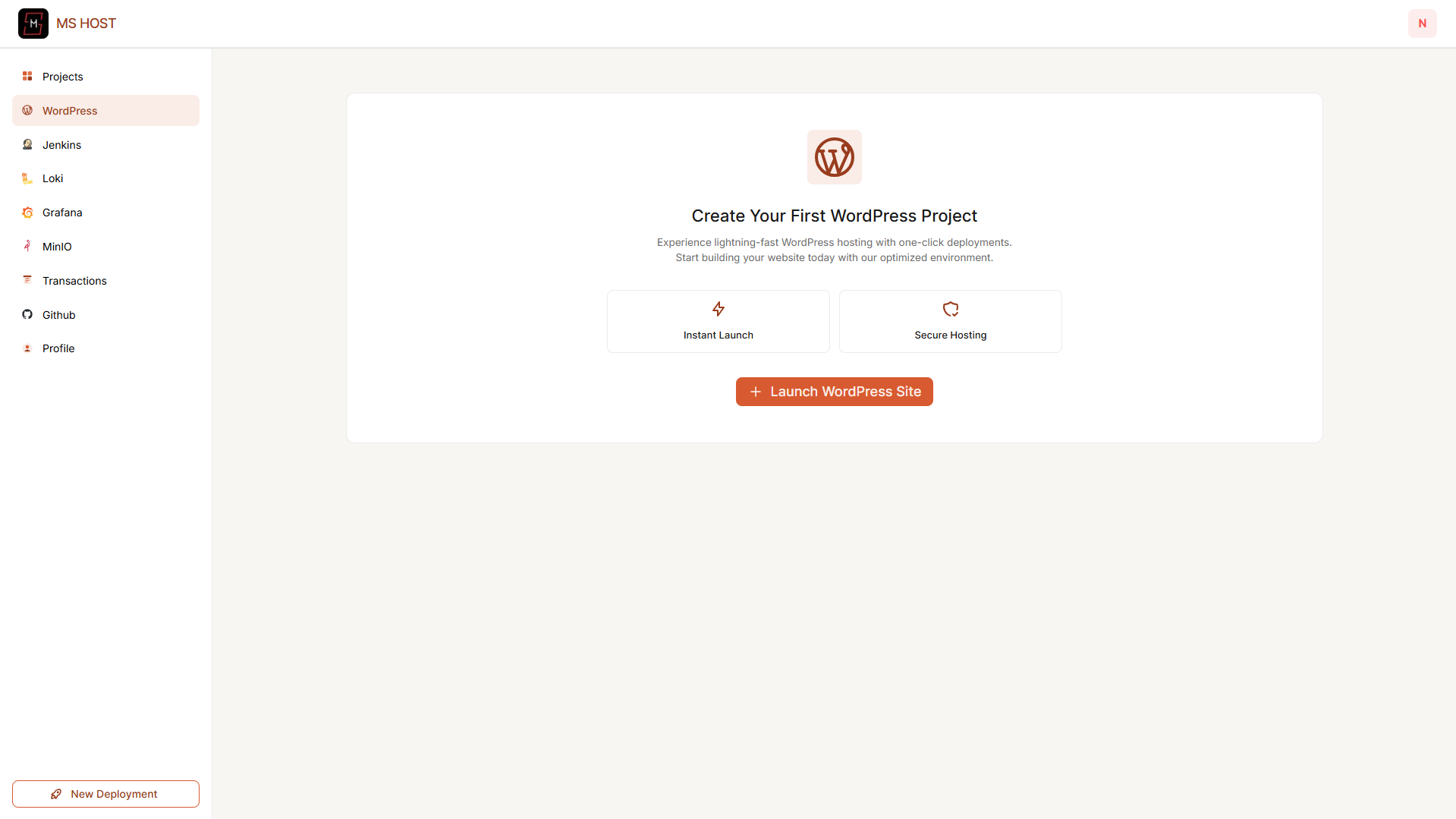
Deploy WordPress with MS Host
Step 1: Website Name
Choose a name for your WordPress project.
Examples:
my-blogor
company-websiteThis helps identify your website in the dashboard.

Step 2: Select a Hosting Plan
Choose the hosting plan that best fits your needs.
If you're just starting, select the Free Plan.
It's perfect for:
- Personal blogs
- Portfolios
- Business websites
- Learning WordPress
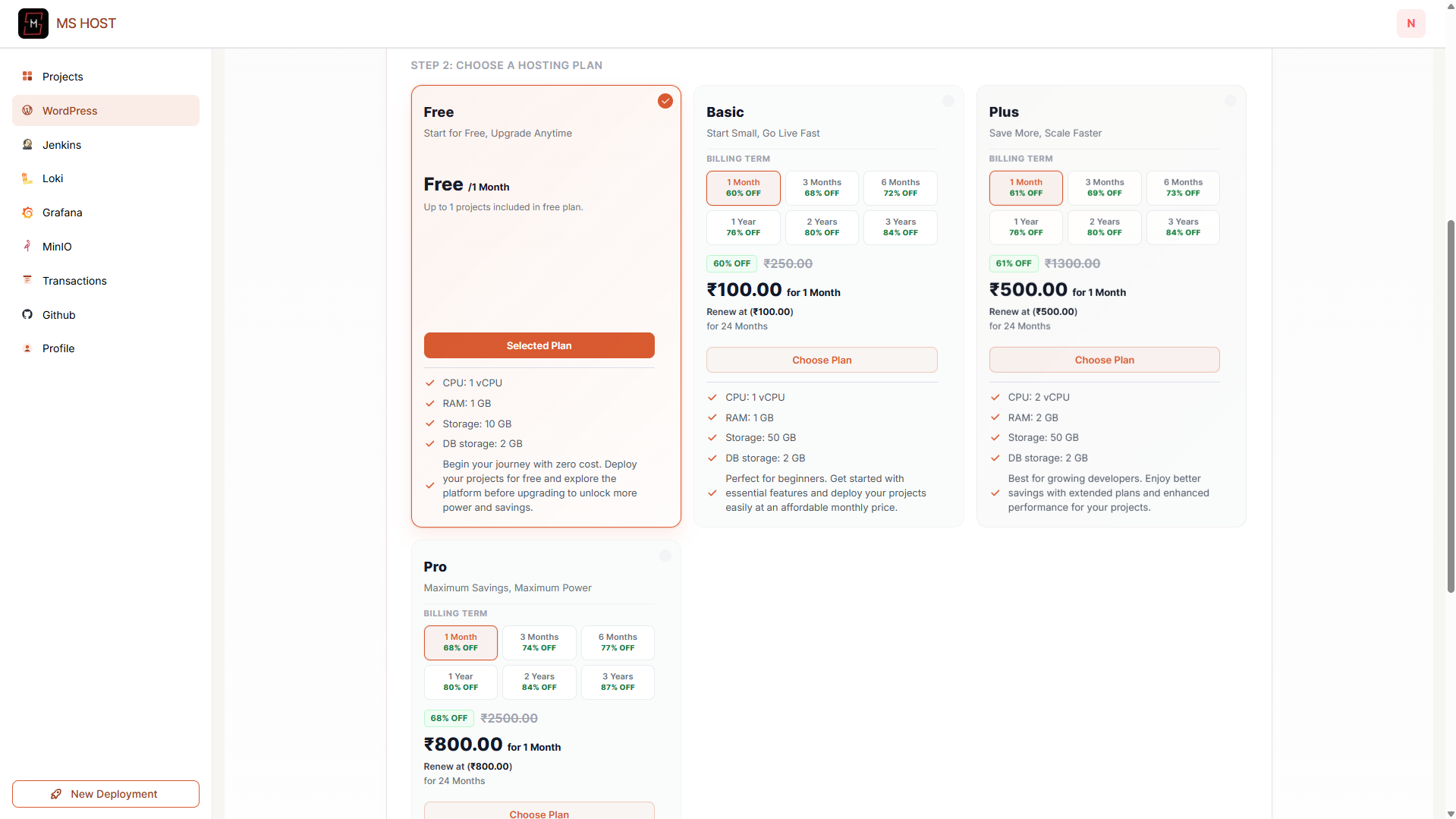
Step 3: Configure a Custom Domain (Optional)
Want to use your own domain?
Enable the custom domain option and enter your domain.
Examples:
www.example.comor
blog.example.comMS Host will provide the required DNS records to connect your domain.
If you don't have a domain yet, continue using the generated website URL.
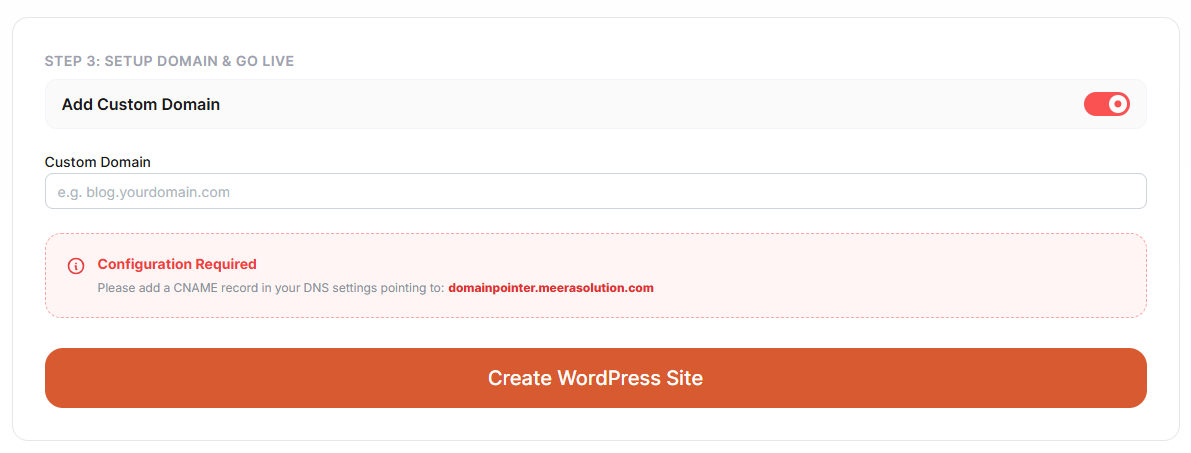
Step 4: Create Your WordPress Website
Click:
Create WordPress Website
MS Host automatically
- Creates your WordPress installation
- Configures the web server
- Sets up the database
- Installs WordPress
- Generates your website URL
Within a few minutes, your website will be live.
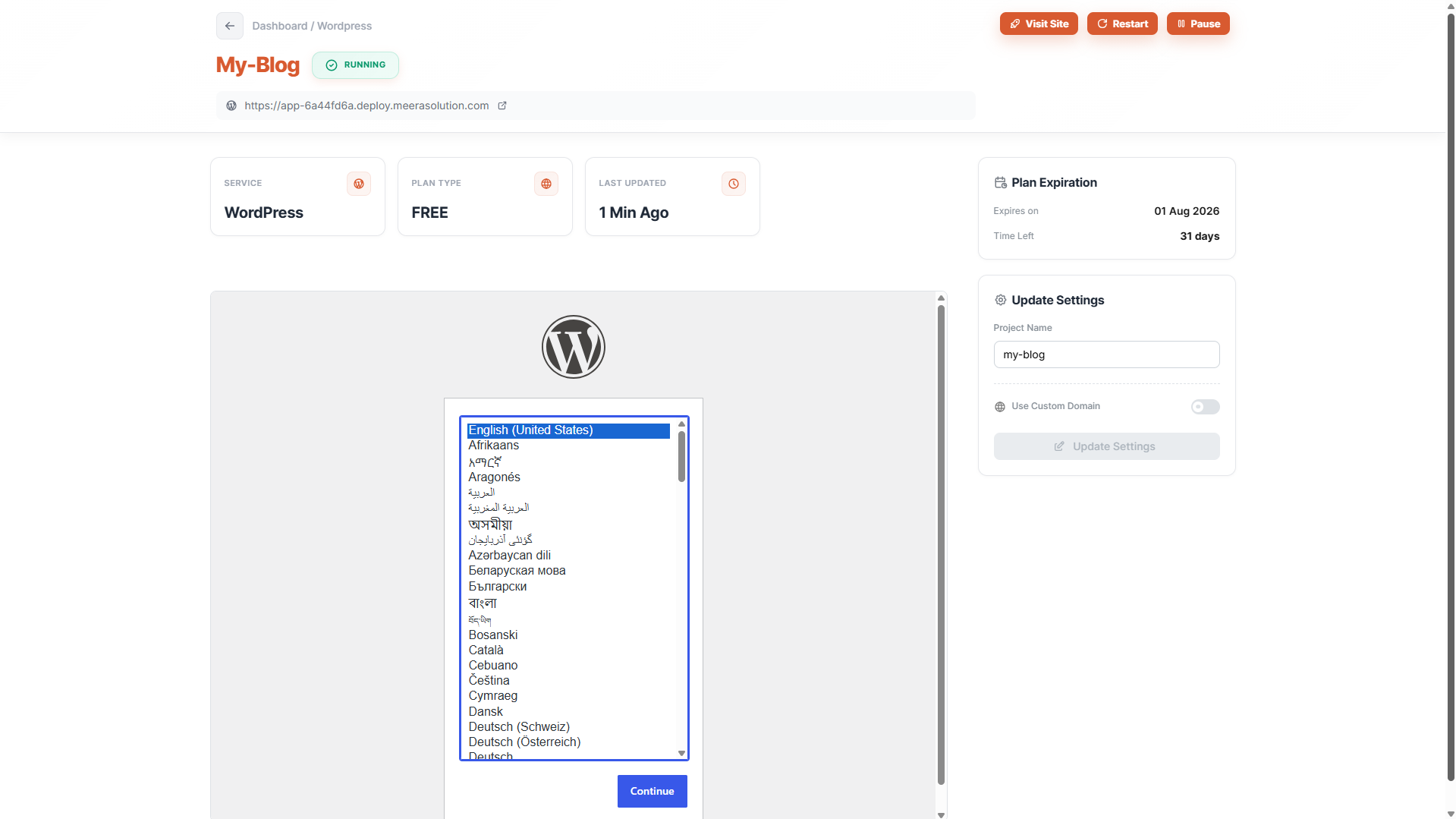
Monitor Your Website
After deployment, you'll be redirected to the WordPress dashboard.
Here you can monitor:
- Website status
- Plan information
- Resource usage
- Live URL
- Custom domain
- Project settings
Everything is managed from one dashboard.
Access Your WordPress Admin Panel
Once deployment completes, open your website URL.
To access the WordPress dashboard, visit:
https://your-domain.com/wp-adminor
https://your-site.ms-host.app/wp-adminFrom there, you can:
- Create pages
- Publish blog posts
- Install themes
- Add plugins
- Customize your website
Customize Your Website
Once inside WordPress, you can start building your website immediately.
Popular first steps include:
- Choosing a theme
- Creating your homepage
- Publishing your first blog post
- Installing SEO plugins
- Configuring navigation menus
- Uploading your logo
No coding is required.
Final Thoughts
WordPress remains the world's most popular platform for building websites, and getting started has never been easier.
With MS Host, you don't need to configure servers, install software manually, or worry about infrastructure.
Simply create an account, deploy your WordPress website, and start building.
Whether you're launching a personal blog, portfolio, business website, or online store, MS Host provides a fast and beginner-friendly way to host WordPress for free.
Create your website. Publish your ideas. Grow your online presence. 🚀