How to Build a Production-Ready Next.js Application in 2026

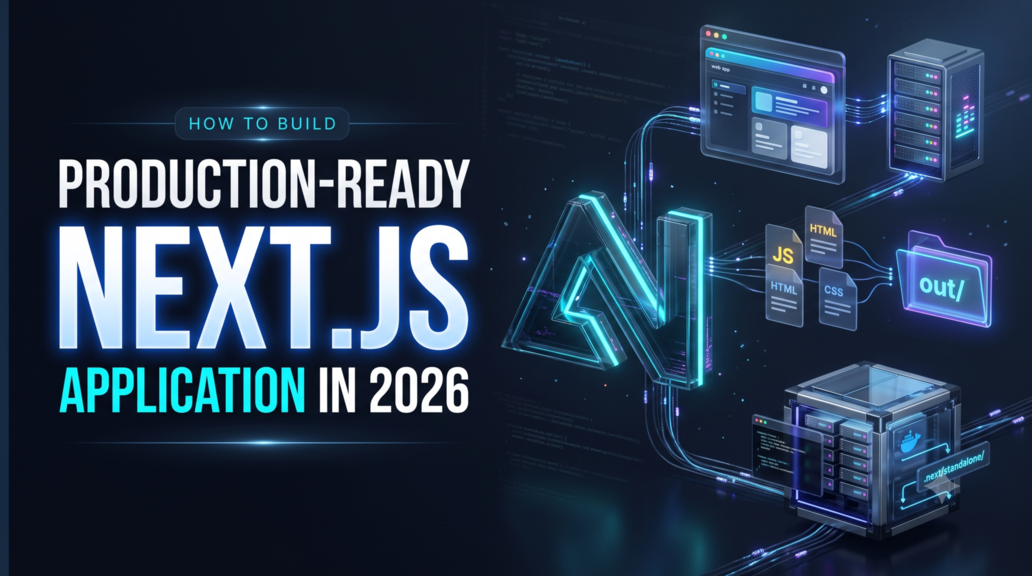
Next.js is a popular framework for building modern web applications, including blogs, portfolios, SaaS platforms, dashboards, and e-commerce websites.
However, building an application is only one part of the process. Choosing the right production build, configuring the server, optimizing performance, and deploying the application correctly are equally important.
Next.js provides three commonly used output approaches:
- Standard Build — the default production build.
- Static Export — generates HTML and other static assets for hosting without a Next.js server.
- Standalone Build — generates a minimal deployment package with a Node.js server and the required runtime files.
Each approach has different requirements, advantages, and limitations.
In this guide, we will explore all three build types, how to configure them, how to deploy them, and which option is best for production in 2026.
1. Understanding the Three Next.js Build Types
These are not three entirely separate build systems. Standard build is the default behavior, while static export and standalone are alternative output configurations.
All three use the same production build command:
npm run build
The main difference is the generated output and how the application runs in production.
1.1 Standard Build — Default Next.js Output
The standard build is the default production build of a Next.js application.
When you run next build without specifying another output mode, Next.js generates its production output inside the .next directory.
A typical package.json looks like this:
{
  "scripts": {
    "dev": "next dev",
    "build": "next build",
    "start": "next start"
  }
}
Build and start the application:
npm run build
npm run start
How does it work?
Next.js prepares the application for production. Depending on the route and its configuration, pages may be prerendered during the build or rendered dynamically on the server.
The standard Node.js deployment supports server-side rendering, Server Actions, and other supported server-dependent Next.js features.
Typical deployment flow:
Next.js Source Code
        |
        v
    next build
        |
        v
      .next/
        |
        v
     next start
        |
        v
   Node.js Server
        |
        v
       Users
When should you use a standard build?
- When deploying to a managed Next.js hosting platform.
- When your application requires server-side rendering.
- When you need server-dependent Next.js features.
- When you want to use the default production server workflow.
The deployment environment must contain the required application files and dependencies and support a compatible Node.js runtime.
1.2 Static Export — Generate HTML Files
Static export is designed for applications that can be generated at build time and served as static files.
Instead of requiring a running Next.js server, Next.js generates HTML files and supporting assets for supported routes.
Configure next.config.ts:
import type { NextConfig } from 'next';

const nextConfig: NextConfig = {
  output: 'export',
};

export default nextConfig;
Build the application:
npm run build
Next.js generates the static output inside the out directory.
A simplified directory structure looks like this:
out/
├── index.html
├── 404.html
├── about.html
├── blog/
│   ├── post-one.html
│   └── post-two.html
└── _next/
    └── static/
        ├── css/
        └── chunks/
The exact structure depends on the routes and configuration. For example, trailingSlash: true can generate paths such as about/index.html.
How does it work?
During the build, Next.js renders supported routes into static HTML and generates the required assets. A web server or CDN then serves those files directly to visitors.
You do not need to run next start to serve the exported website.
Static files can be hosted using:
- Nginx or Apache
- Amazon S3 with suitable static hosting or CDN configuration
- Static hosting platforms
- CDN-backed deployment services
When should you use static export?
- Portfolio websites
- Documentation websites
- Company websites
- Blogs whose content can be generated during the build
- Landing pages and marketing websites
- Frontends that consume external APIs in the browser
Limitations of static export
Static export does not support Next.js features that require a running server, including request-time server rendering, Server Actions, and Incremental Static Regeneration.
Dynamic routes must be generated ahead of time where required, using mechanisms such as generateStaticParams().
The default Next.js image optimization server is also unavailable in a purely static deployment. Use a custom image loader or an external image optimization service if needed.
Static export is a strong choice when your application fits these constraints.
1.3 Standalone Build — A Self-Contained Deployment Package
Standalone output is particularly useful when deploying a Next.js application on your own server or inside a Docker container.
It creates a focused deployment package without requiring the entire development project on the production server.
Configure next.config.ts:
import type { NextConfig } from 'next';

const nextConfig: NextConfig = {
  output: 'standalone',
};

export default nextConfig;
Build the application:
npm run build
Next.js generates a standalone directory inside .next:
.next/
└── standalone/
    ├── server.js
    ├── package.json
    ├── node_modules/
    └── ...
The exact files depend on your application and the dependencies detected by Next.js.
Unlike static export, standalone output includes a minimal Node.js server and the runtime files identified as necessary for the application.
Important: Next.js does not automatically copy the public directory or .next/static assets into the standalone directory.
Copy these assets when needed:
npm run build

cp -r public .next/standalone/public
mkdir -p .next/standalone/.next
cp -r .next/static .next/standalone/.next/static
Run these commands from the project root, assuming the source directories exist. On Windows, use the equivalent PowerShell commands.
Start the standalone server:
node .next/standalone/server.js
The application now runs through the generated Node.js server instead of next start.
When should you use standalone output?
- Docker deployments
- Self-hosted Linux servers
- VPS deployments
- Containerized applications
- CI/CD pipelines that transfer a minimal runtime package
- Applications that require server-side Next.js features
Standalone output still requires a compatible Node.js runtime. It is a deployment optimization, not a static website format or a guarantee of lower memory usage in every situation.
2. Standard Build vs Static Export vs Standalone Build
| Feature | Standard Build | Static Export | Standalone Build |
|---|---|---|---|
| Configuration | Default | output: 'export' |
output: 'standalone' |
| Output | .next/ |
out/ |
.next/standalone/ |
| Node.js server | Required for standard server deployment | Not required | Required |
| Server-side rendering | Supported | No request-time rendering | Supported |
| Static HTML generation | Supported where applicable | Supported routes are exported | Supported where applicable |
| Server Actions | Supported | Not supported | Supported |
| Incremental Static Regeneration | Supported | Not supported | Supported |
| Default image optimization | Available with Next.js server | Requires an alternative | Available with generated server |
| Best use case | General Next.js hosting | Static websites | Docker and self-hosting |
The standard Node.js deployment supports the full Next.js feature set, while static export has limited feature support. Standalone output provides a focused package for self-hosting.
Which Build Is Best for Production?
There is no single best option for every application. The correct choice depends on the application's features and hosting infrastructure.
Standard Build
Best for managed Next.js hosting and conventional Node.js deployments. Choose it when you want the default runtime and your hosting platform handles dependencies and server setup.
Static Export
Best for portfolios, documentation, marketing websites, and static blogs. Choose it when you want to publish HTML and assets to a static host or CDN without operating a Next.js server.
Standalone Build
Best for self-hosted applications, VPS deployments, and Docker-based infrastructure. Choose it when you need server-side functionality and want a focused runtime package.
My recommendation: For a production Next.js application deployed on your own VPS, Linux server, or Docker infrastructure, standalone output is a strong choice. For a static blog, portfolio, or documentation website, static export may be simpler and cheaper to operate.
If your managed hosting platform recommends the standard Next.js build, you do not need to enable standalone simply because it is intended for production.
3. How to Create Each Build Type
Step 1: Create a Next.js Application
Create a new project:
npx create-next-app@latest my-next-app
cd my-next-app
Choose the options appropriate for your project, including TypeScript, ESLint, and the App Router if required.
Start the development server:
npm run dev
Open http://localhost:3000 in your browser.
Step 2: Create a Standard Production Build
Ensure that your package.json contains these scripts:
{
  "scripts": {
    "dev": "next dev",
    "build": "next build",
    "start": "next start"
  }
}
Build and run the application:
npm run build
npm run start
This is the standard production workflow. The application runs on the default Next.js server, usually on port 3000 unless configured otherwise.
Step 3: Create a Static Export
Update next.config.ts:
import type { NextConfig } from 'next';

const nextConfig: NextConfig = {
  output: 'export',
  trailingSlash: true,
};

export default nextConfig;
Build the application:
npm run build
Deploy the generated out/ directory to a static hosting platform or web server.
The trailingSlash option is optional. It changes the generated route layout, so choose it based on your desired URL structure.
Do not use next start to serve the exported website. Configure your static host to serve the files instead.
Step 4: Create a Standalone Build
Update next.config.ts:
import type { NextConfig } from 'next';

const nextConfig: NextConfig = {
  output: 'standalone',
};

export default nextConfig;
Build the application and prepare the static assets:
npm run build

cp -r public .next/standalone/public
mkdir -p .next/standalone/.next
cp -r .next/static .next/standalone/.next/static
Start the generated server:
node .next/standalone/server.js
For production, configure environment variables, process supervision, HTTPS, logging, and any required external services.
These configurations are alternatives. Select the desired output mode in next.config.ts and rebuild when switching between them. One build does not automatically generate all three deployment packages.
4. How to Make a Next.js Application Production-Ready
Choosing the correct build type is only the first step. A production-ready application also needs performance optimization, security, monitoring, and a reliable deployment process.
4.1 Optimize Performance
Next.js provides several features that can improve performance:
- Use Server Components by default and add
'use client'only where client-side interactivity is needed. - Use
next/imagewith a compatible image optimization strategy. - Use
next/fontto optimize font loading. - Avoid unnecessary JavaScript and oversized dependencies.
- Use caching and revalidation strategies appropriate for your content.
- Analyze large bundles and remove unused packages.
Example of a Server Component that fetches product data:
export default async function ProductsPage() {
  const response = await fetch(
    'https://api.example.com/products'
  );

  if (!response.ok) {
    throw new Error('Failed to fetch products');
  }

  const products = await response.json();

  return (
    <main>
      <h1>Products</h1>

      <ul>
        {products.map((product: { id: string; name: string }) => (
          <li key={product.id}>{product.name}</li>
        ))}
      </ul>
    </main>
  );
}
This example fetches data on the server. Its caching and rendering behavior depends on the Next.js version and configuration, so define those policies explicitly when freshness or performance requirements matter.
4.2 Configure Environment Variables
Never hardcode database credentials, API secrets, or private tokens in your source code.
For local development, use an environment file such as .env.local:
DATABASE_URL=your_database_url
API_SECRET=your_private_api_secret
Add secret-containing environment files to .gitignore and configure production secrets through your deployment platform.
Remember that variables prefixed with NEXT_PUBLIC_ can be exposed to browser code. Use that prefix only for values that are safe to make public.
4.3 Add Error Handling and Logging
Production applications need meaningful error handling.
Implement:
error.tsxfor route-level error boundaries in the App Router.not-found.tsxfor missing pages.- Server-side logs for failed requests and unexpected errors.
- Error monitoring to identify issues affecting real users.
- Health checks and alerts for server availability.
Do not expose stack traces, database errors, or private configuration values to users.
4.4 Secure the Application
Before deployment, review the following:
- Validate user input on the server.
- Authenticate and authorize protected operations.
- Protect sensitive actions against abuse.
- Apply appropriate security headers.
- Use HTTPS.
- Apply rate limiting where needed.
- Keep dependencies updated.
- Never trust client-side validation as the only security layer.
For self-hosted deployments, consider placing a reverse proxy such as Nginx in front of the application server. It can help manage connections, TLS, request limits, and other infrastructure-level concerns.
5. Recommended Production Architecture
For an application that needs server-side rendering, authentication, API integrations, and a database, a typical self-hosted architecture looks like this:
Users / Browsers
        |
        v
HTTPS / CDN / Reverse Proxy
        |
        v
Next.js Standalone Server
        |
        +-----------> Database
        |
        +-----------> External APIs
        |
        +-----------> Object Storage
A production deployment can also use Docker, a process manager, centralized logging, and a CI/CD pipeline.
For a static website, the architecture can be much simpler:
Next.js Build Process
        |
        v
Generated out/ Directory
        |
        v
Static Host / CDN
        |
        v
Users
The static architecture does not require a Next.js application server at runtime, although external APIs or other backend services may still be needed for interactive functionality.
6. Common Mistakes to Avoid
| Mistake | Correct Approach |
|---|---|
| Assuming every page renders dynamically | Understand which routes are static and which require server rendering. |
| Choosing static export for an application that needs Server Actions | Use a server-capable deployment mode. |
| Assuming standalone automatically includes every asset | Copy public/ and .next/static/ when needed, or serve assets separately. |
| Putting secrets in client-side code | Keep private credentials on the server. |
| Running a development server in production | Use the appropriate production server or static hosting setup. |
| Deploying without testing | Run production builds and smoke tests before releasing. |
| Ignoring caching | Define caching, revalidation, and invalidation policies according to the data. |
| Running multiple instances without considering shared caching | Review cache coordination and shared storage requirements. |
7. Production Deployment Checklist
Use this checklist before releasing your application:
- [ ] Production build completes successfully.
- [ ] Correct output mode is configured.
- [ ] Environment variables and secrets are configured securely.
- [ ] Authentication and authorization are tested.
- [ ] Error handling and logging are enabled.
- [ ] Images, fonts, and assets load correctly.
- [ ] SEO metadata, canonical URLs, and sitemap are checked.
- [ ] HTTPS and appropriate security headers are configured.
- [ ] Production routes and API integrations are tested.
- [ ] Backup, monitoring, and rollback procedures are ready.
Conclusion
Building a production-ready Next.js application in 2026 requires more than running npm run build. You must understand how the output mode affects deployment, server capabilities, performance, and operational complexity.
The three options serve different purposes:
- Standard Build: A straightforward choice for conventional Node.js deployments and managed Next.js hosting.
- Static Export: Ideal for websites that can be generated ahead of time and served as static files.
- Standalone Build: A strong option for self-hosted applications and Docker deployments that require Next.js server features.
For most server-dependent applications deployed on your own infrastructure, evaluate standalone output. For a blog or portfolio that can be generated entirely at build time, consider static export first.
The best production setup is the one that supports your application's requirements without introducing unnecessary complexity.
Ultimately, a reliable production application combines the correct build configuration with secure coding practices, effective caching, performance optimization, automated testing, monitoring, and a dependable deployment strategy.
Official Next.js Resources
- Next.js Production Deployment: https://nextjs.org/docs/app/getting-started/deploying
- Next.js Static Exports: https://nextjs.org/docs/app/guides/static-exports
- Next.js Self-Hosting Guide: https://nextjs.org/docs/app/guides/self-hosting
- Next.js Output Configuration: https://nextjs.org/docs/app/api-reference/config/next-config-js/output
Last reviewed: October 2026.