How to Deploy a Node.js Application for Free in 2026 (Complete Beginner's Guide)
Build with Node.js and deploy in minutes. This beginner-friendly guide shows how to host Node.js applications for free using MS Host with GitHub integration and deployment automation.

Learn how to deploy a Node.js application for free using MS Host. Connect GitHub, automate deployments, and launch your backend in minutes without managing servers.
Introduction
Every developer eventually reaches the same milestone.
Your application works perfectly on localhost.
Your API responds correctly.
Your database connection is working.
Everything looks great.
Then comes the next challenge:
How do you get your Node.js application online?
Many developers assume they need to rent a VPS, configure Linux servers, install Node.js manually, and manage deployments themselves.
While that approach works, it often adds unnecessary complexity.
Today, modern deployment platforms make it possible to deploy Node.js applications in just a few clicks.
In this guide, you'll learn how to deploy your Node.js application for free using MS Host.
Why Deploying Node.js Can Be Difficult
Many beginners discover that deployment is often harder than development.
Traditional hosting usually requires the following:
- Renting a VPS
- Installing Node.js
- Managing processes
- Configuring domains
- Setting up SSL
- Monitoring uptime
- Handling deployments
For small projects, this can feel overwhelming.
Why Choose MS Host?
MS Host simplifies Node.js deployment by handling infrastructure for you.
Benefits include:
- Free hosting plans
- GitHub integration
- Live deployment logs
- Environment variable support
- Custom domains
- SSL certificates
- Deployment monitoring
Instead of managing servers, you can focus on building applications.
Getting Started with MS Host
Step 1: Create an Account
Visit MS Host and create an account.
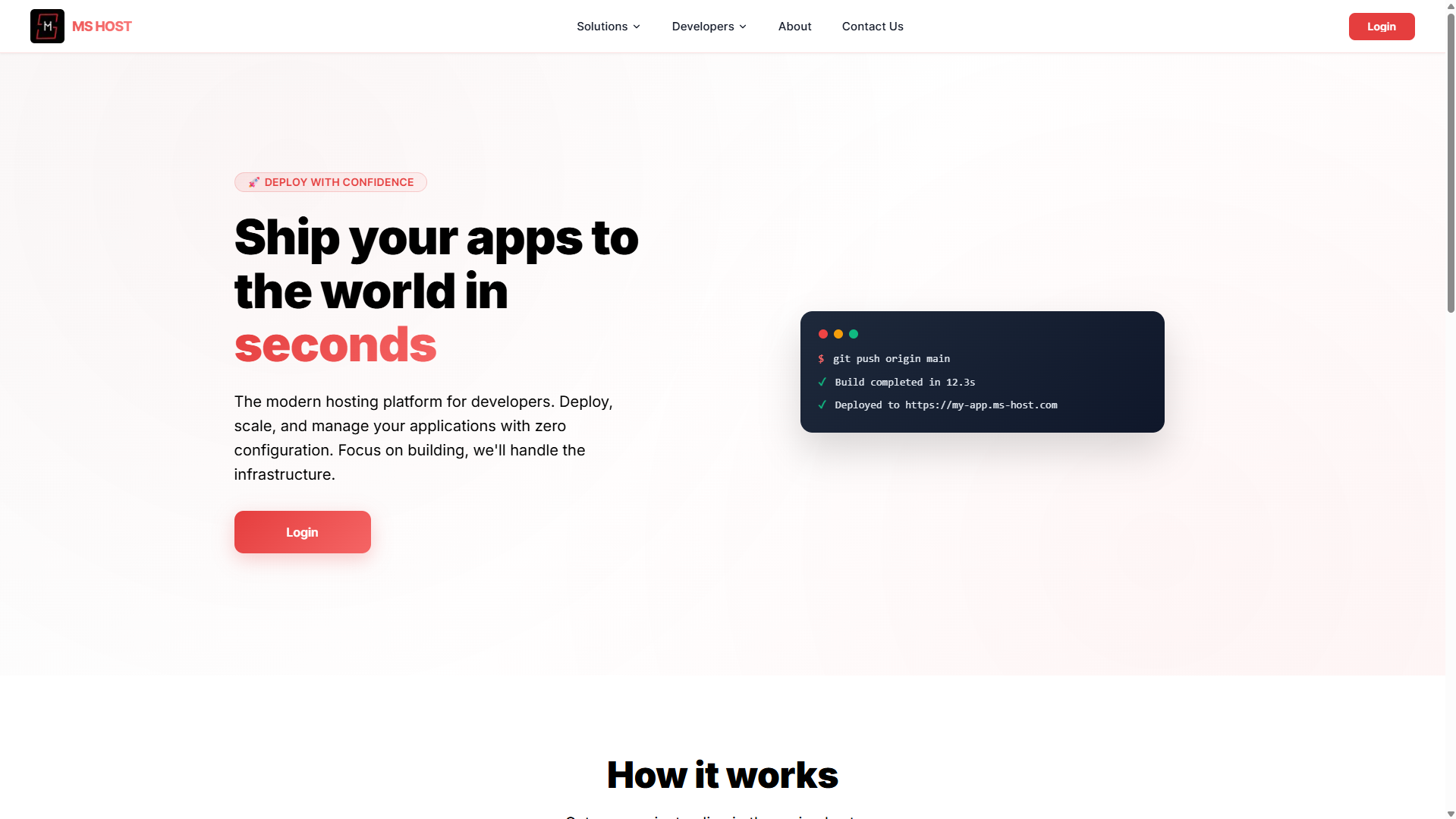
You can sign up using:
- Email and password
- Google Sign-In
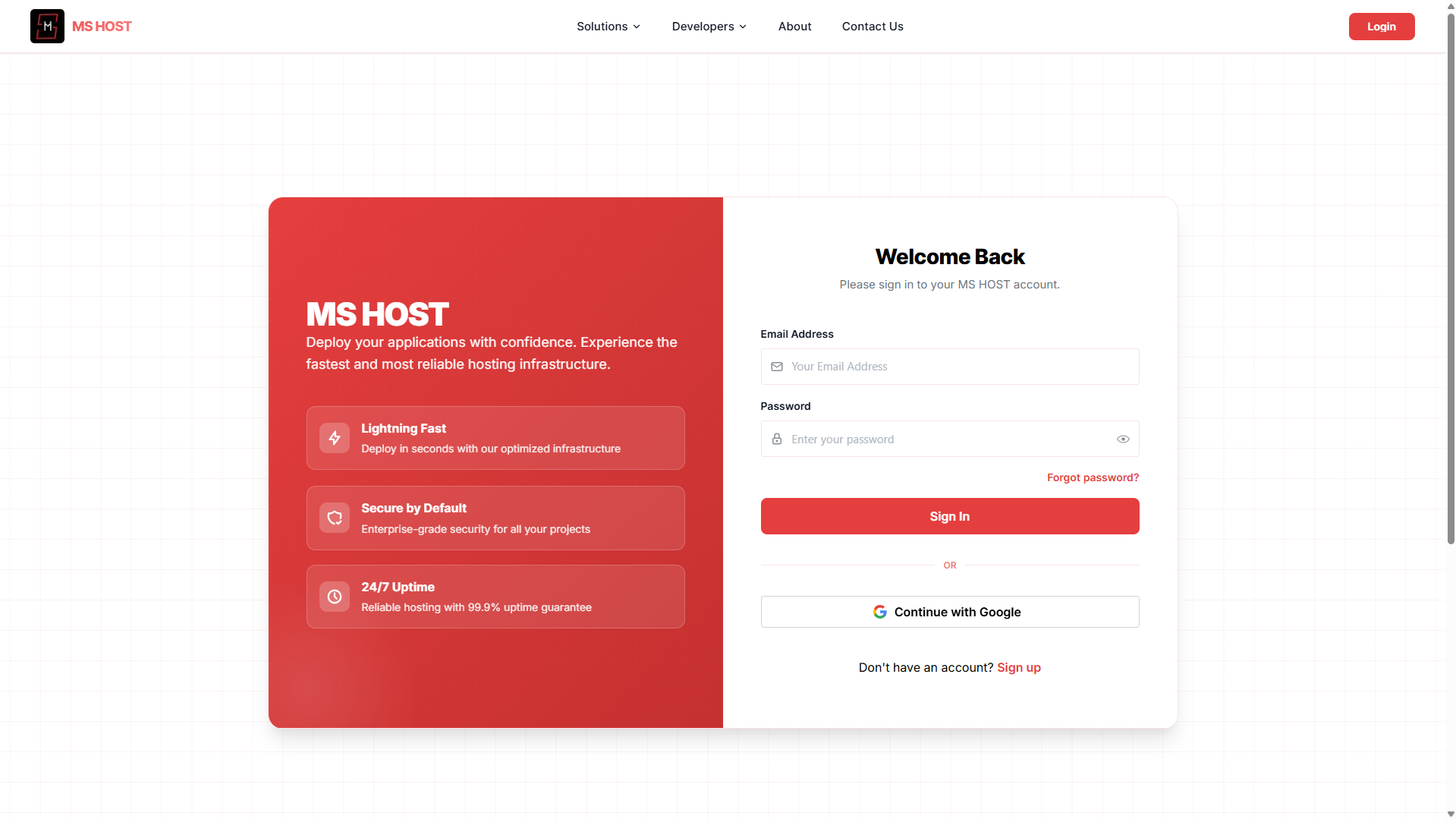
After logging in, you'll gain access to the deployment dashboard.
Step 2: Connect GitHub
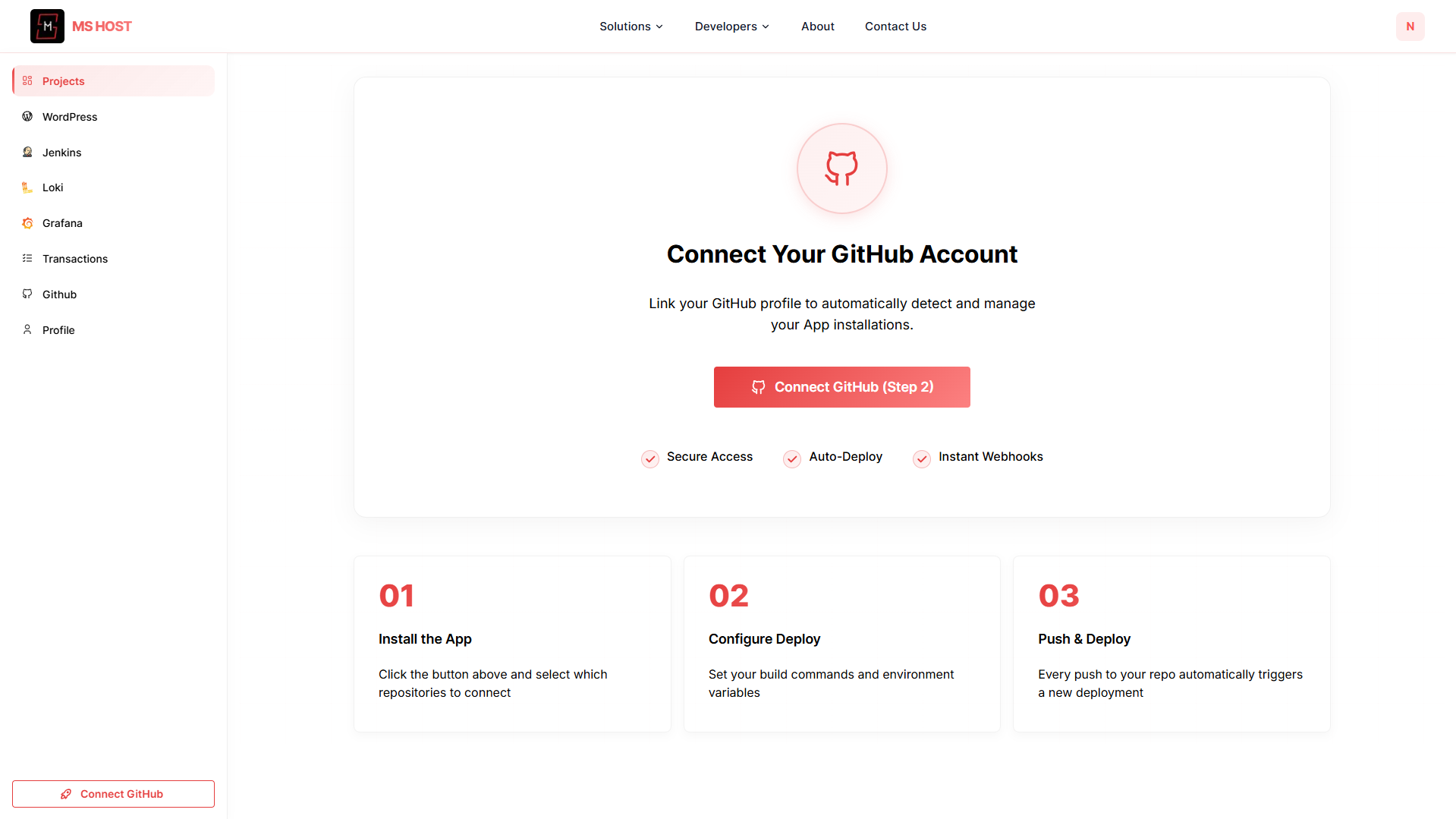
Connect your GitHub account.
This allows MS Host to:
- Access repositories
- Detect new commits
- Keep applications synchronized
Once connected, your repositories will appear during project creation.
Step 3: Push Your Application to GitHub
Before deployment, upload your Node.js project to GitHub.
git init
git add .
git commit -m "Initial Node.js app"
git branch -M main
git remote add origin https://github.com/username/my-node-app.git
git push -u origin main
Now you're ready to deploy.
Deploy Your Node.js Application
Step 1: Project Name
Enter a project name.

Example:
node-api
or
my-nodeStep 2: Select Repository
Choose the GitHub repository containing your application.
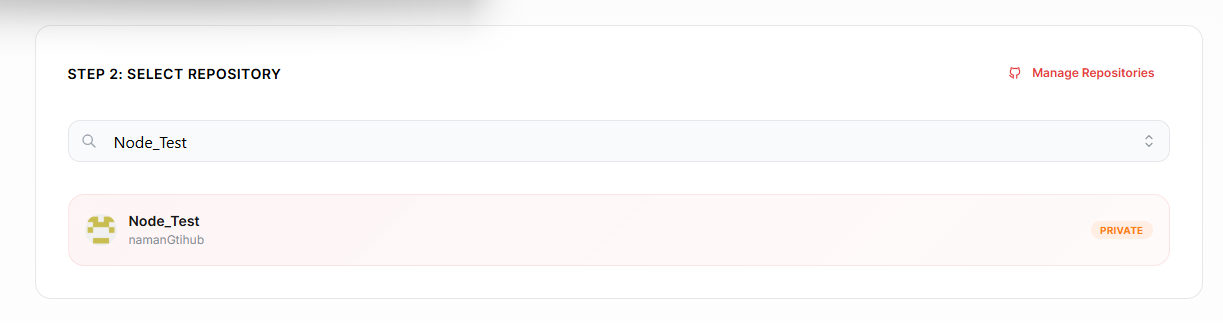
MS Host automatically displays repositories from your connected account.
Step 3: Select Project Type
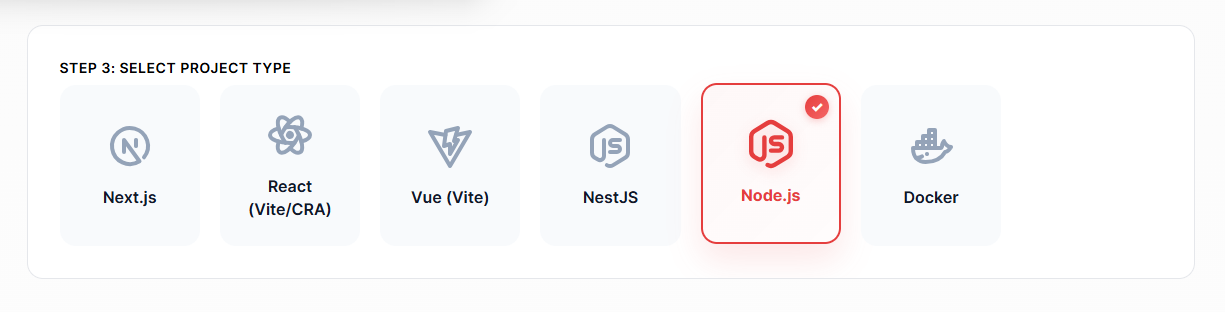
Choose:
Node.js
from the available deployment options.
MS Host automatically prepares the appropriate runtime environment.
Step 4: Select Plan
Choose the Free Plan to get started.
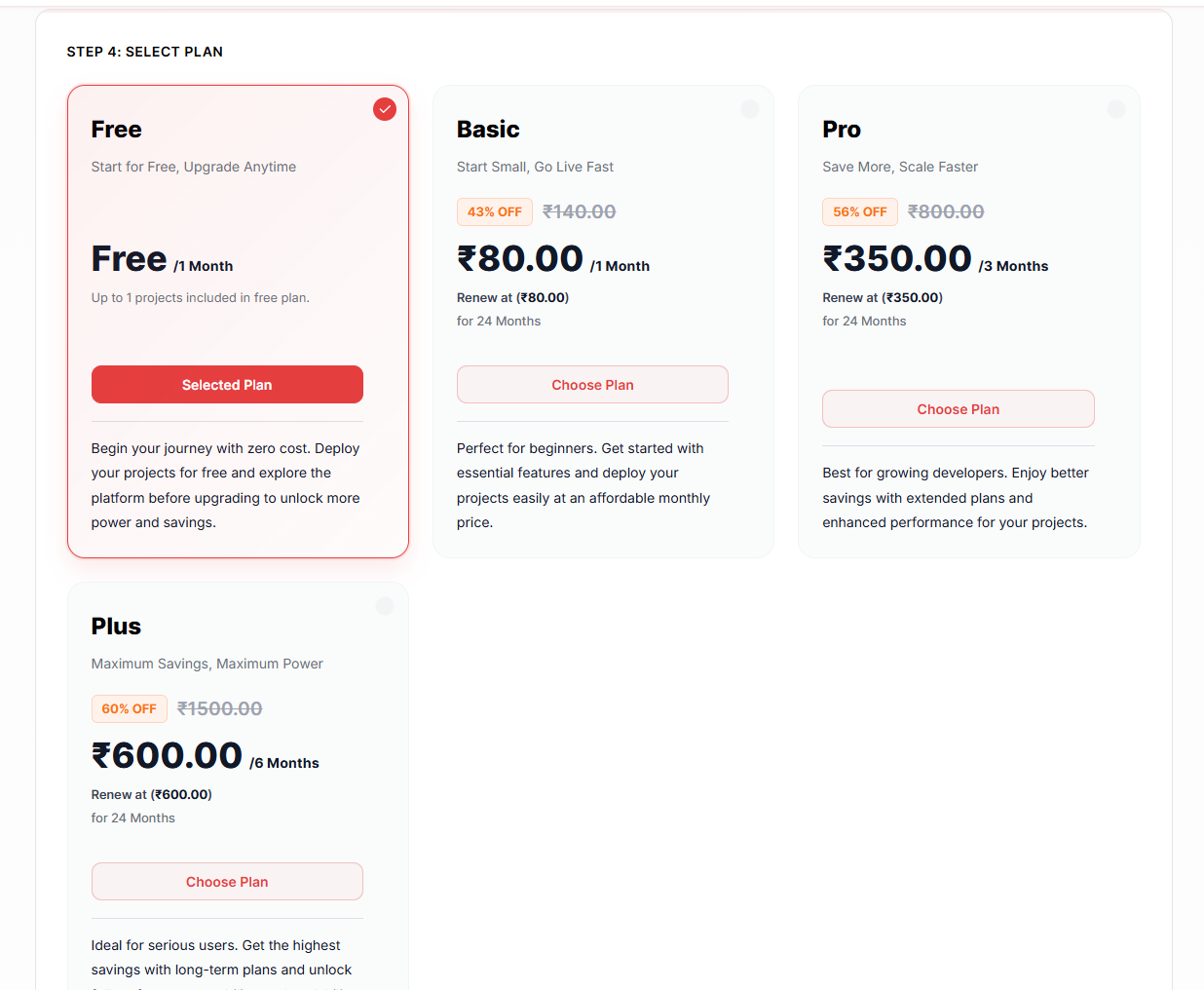
Perfect for:
- Personal projects
- Learning applications
- APIs
- Portfolios
- Startup MVPs
Step 5: Configure & Deploy
After selecting your hosting plan, it's time to configure your Node.js application before deployment.
MS Host automatically prepares the deployment environment, but you'll need to review a few important settings.
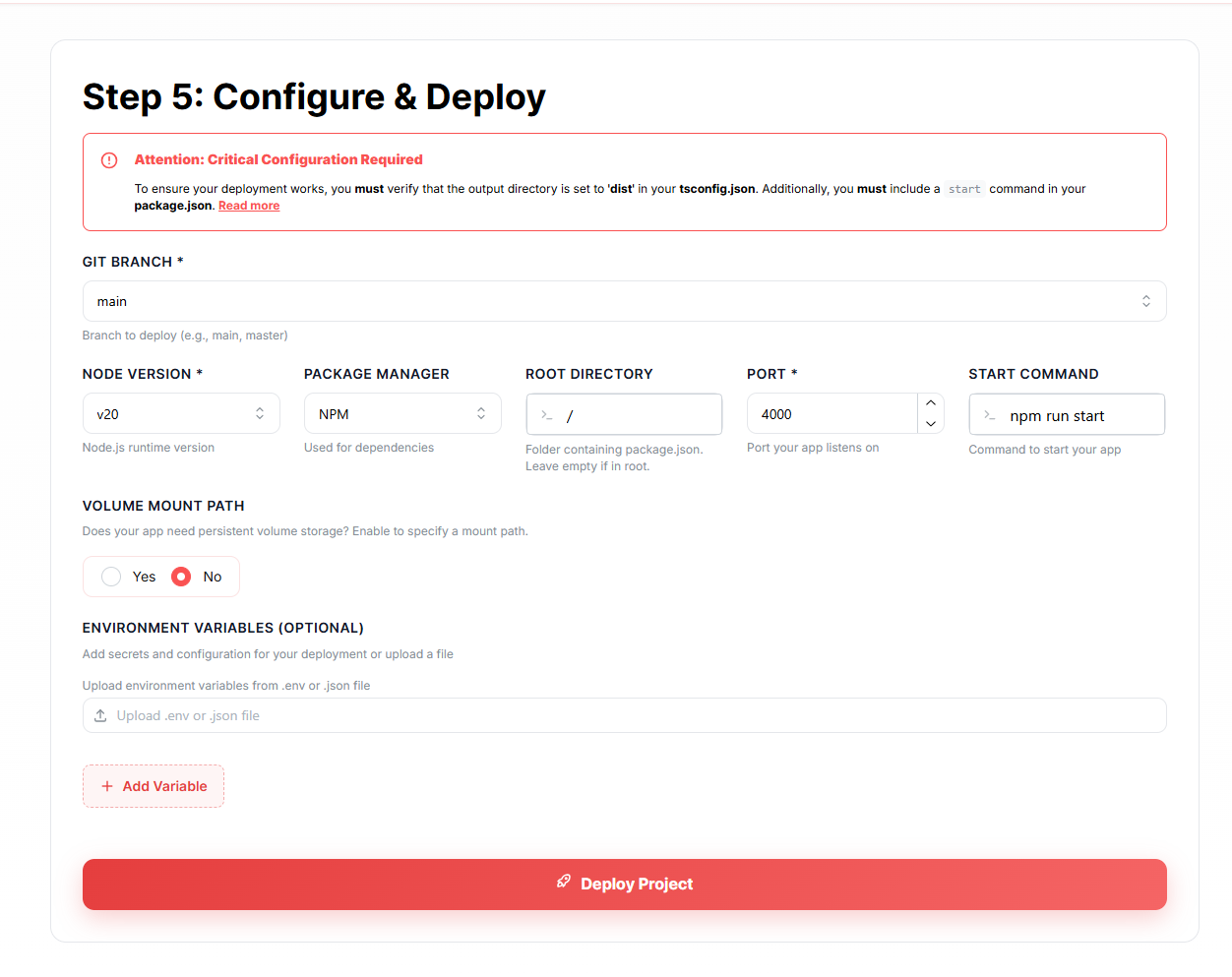
Important Configuration Notice
Before deploying your application, make sure your project is properly configured for production.
Your application should include:
A Valid Start Script
Inside your package.json:
{
  "scripts": {
    "start": "node server.js"
  }
}
or
{
  "scripts": {
    "start": "npm run production"
  }
}
MS Host uses this command to start your application after deployment.
Git Branch
Select the branch that should be deployed.
Most projects use:
mainor
masterNode Version
Choose the Node.js runtime version.
Recommended:
v20Using a modern Node.js version ensures better performance, security, and compatibility with current packages.
Package Manager
Select the package manager used in your project.
Supported options include:
npmyarnpnpmFor most Node.js applications, npm is the default choice.
Root Directory
If your application is located in the repository root, leave:
/If you're using a monorepo structure, specify the folder containing your application.
Example:
apps/apiPort Configuration
Specify the port your application listens on.
Example:
4000Make sure this matches the port configured inside your Node.js application.
Example:
app.listen(4000);Start Command
This tells MS Host how to start your application after deployment.
Example:
npm run startOther common examples:
node server.jsnpm run productionnpm run start:prodChoose the command that matches your application's production setup.
Volume Mount Path (Optional)
Some applications need persistent storage.
Enable this option if your application stores files such as:
- User uploads
- Generated documents
- Reports
- Media files
If your application doesn't store files locally, leave this option disabled.
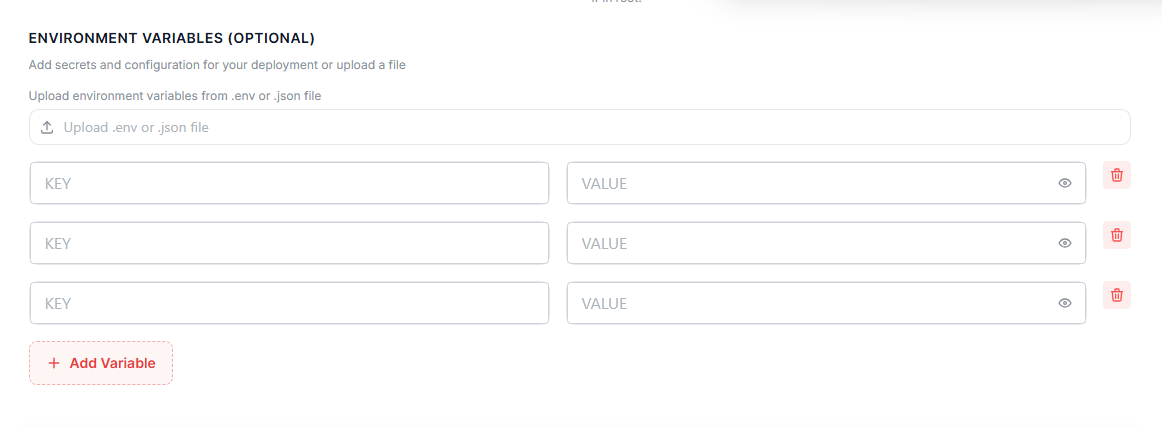
Environment Variables (Optional)
Most production applications require environment variables.
You can either:
- Upload a
.envfile - Add variables manually
Common examples:
DATABASE_URL=
JWT_SECRET=
API_KEY=SMTP_USER=
SMTP_PASSWORD=
To add variables manually:
- Click Add Variable
- Enter the variable name
- Enter the variable value
- Save the configuration
This keeps sensitive information secure and separate from your source code.
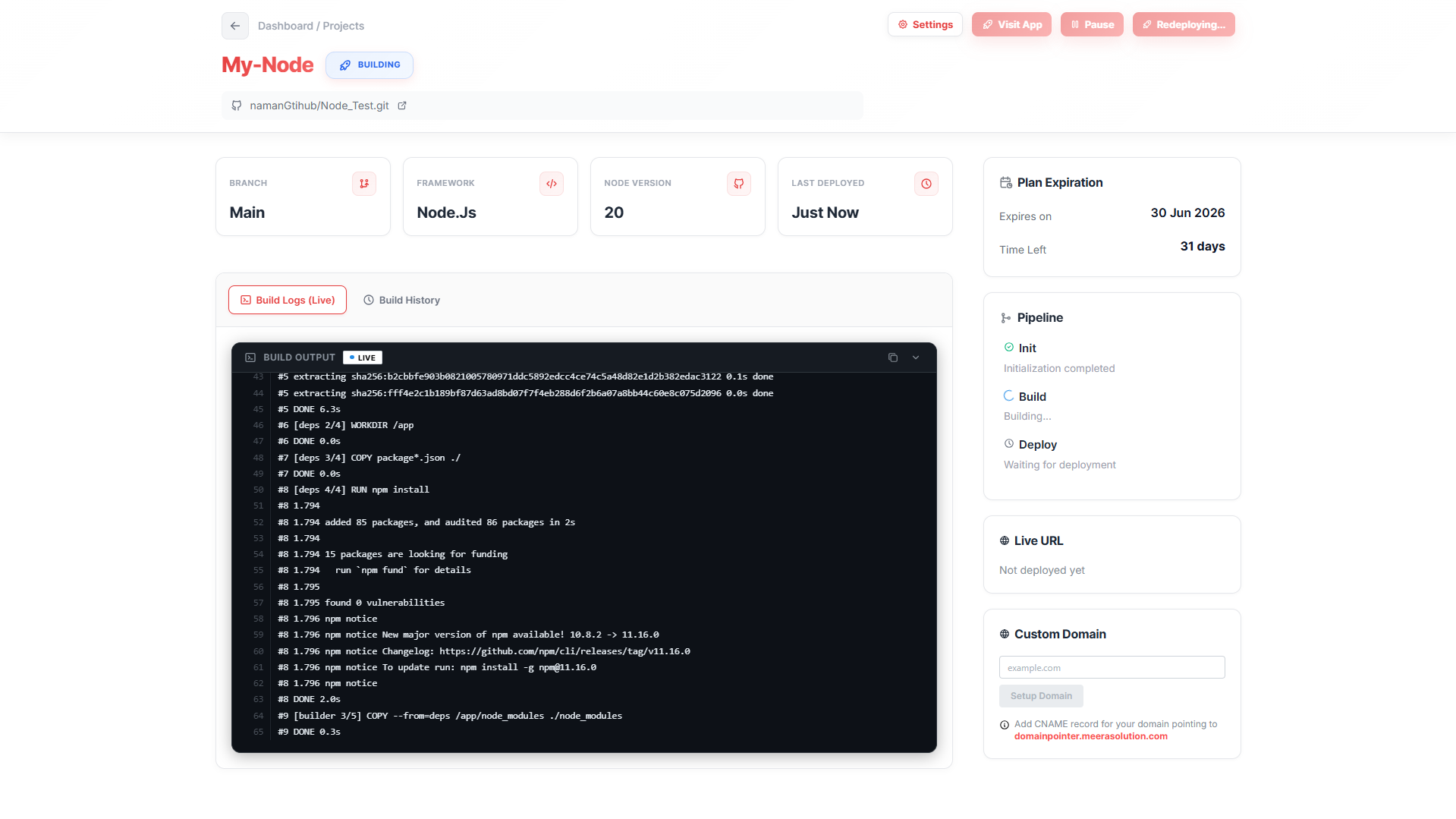
Monitor Deployment
After deployment begins, you'll be redirected to the project dashboard.
The dashboard provides:
- Live build logs
- Deployment status
- Runtime information
- Domain settings
- Application URL
Connect a Custom Domain
Want a professional URL?
Instead of:
my-app.ms-host.appyou can use:
api.yourdomain.comSimply add your domain and follow the provided DNS instructions.
Common Node.js Deployment Mistakes
Missing Environment Variables
Many deployment issues happen because required variables aren't configured.
Always verify:
DATABASE_URLJWT_SECRETAPI_KEYbefore deploying.
Hardcoded Localhost URLs
Never use:
localhost:3000for production environments.
Incorrect Start Commands
Ensure your package.json contains a valid production start script.
Example:
"scripts": { "start": "node server.js"}Final Thoughts
Node.js remains one of the most powerful technologies for building modern backend applications.
Its speed, flexibility, and massive ecosystem make it a favorite among developers worldwide.
But building an application is only part of the journey.
The next step is making it accessible to users.
With MS Host, you can deploy Node.js applications in minutes without managing servers, configuring infrastructure, or maintaining complex deployment workflows.
Simply push your code to GitHub, deploy your project, and let MS Host handle the rest.
Build faster. Deploy smarter. Scale confidently. 🚀