The Real Difference Between display: none vs visibility: hidden (Explained for Real-World CSS)
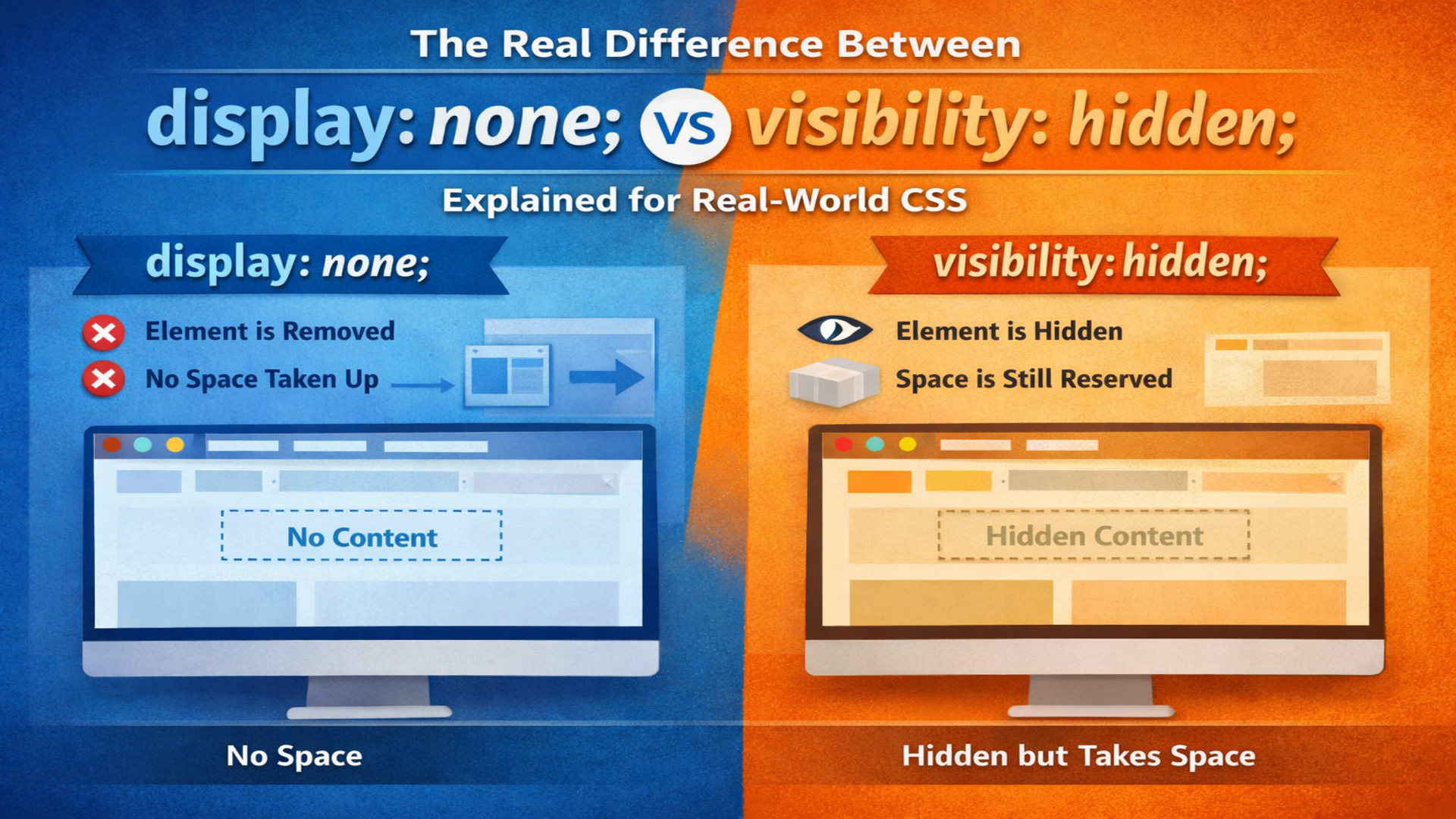
Stop causing layout shifts! While display: none and visibility: hidden both make elements disappear, they handle the browser's render tree in completely different ways. One collapses the layout entirely, while the other leaves a "ghost" footprint behind.

We’ve all been there. You’re building a dropdown menu or a modal, and you need an element to disappear. You reach for your CSS and realize you have two primary suspects: display: none and visibility: hidden.
On the surface, they seem to do the exact same thing—they make stuff invisible. But in the world of frontend css rendering, they are fundamentally different beasts. Choosing the wrong one is a classic recipe for "ghost" layout bugs, broken accessibility, and janky animations.
If you’re prepping for a frontend interview or trying to squash a weird layout bug in your React app, this guide is for you. Let’s break down the difference between display and visibility once and for all.
1. What is css display none?
Think of display: none as the "Delete from Reality" button. When you apply this property to an element, it is completely removed from the css layout behavior.
The Mechanics
When a browser encounters display: none, it behaves as if the element doesn’t exist in the render tree.
- Space: It takes up zero pixels. The surrounding elements will shift to fill the gap.
- DOM: The element still exists in the HTML (the DOM), but it has no visual presence.
- Events: Since it’s not rendered, you can't click it, hover over it, or interact with it in any way.
Real-World Use Case: The Mobile Menu
You have a "Hamburger" menu that should only appear when a button is clicked. You use display: none for the menu links by default so they don't take up space in your header while the user is browsing the main page.
2. What is css visibility hidden?
If display: none is "Delete," then visibility: hidden is "The Invisible Man."
The Mechanics
The element is still there; you just can't see it. It’s like a transparent ghost sitting in a chair.
- Space: The element still occupies its original width and height. It pushes other elements around exactly as if it were visible.
- DOM: It is fully present in the DOM and the render tree.
- Events: Unlike
display: none, avisibility: hiddenelement cannot be clicked or focused, even though it takes up space.
Real-World Use Case: Form Validation
Imagine a row of error messages under input fields. If you use display: none, the form will "jump" or shift every time an error appears. If you use visibility: hidden, the space for the error is already reserved, so the layout stays stable when the message toggles.
3. Core Differences (The Deep Dive)
Layout Space
This is the biggest difference between display and visibility. display: none collapses the box model. visibility: hidden keeps the box model intact.
DOM Presence vs. Render Tree
Both properties keep the element in the DOM. However, display: none removes the element from the Render Tree. This is why display: none is slightly more performant if you have a massive tree of elements that you don't need to process yet.
Screen Readers (Accessibility)
Both properties hide the element from screen readers. If you want to hide something visually but keep it for screen readers, you shouldn't use either—you should use a "visually-hidden" utility class that moves the element off-screen.
Animations
You cannot animate display: none. Browsers treat it as a binary state (it's either there or it isn't). However, visibility can be transitioned (though it's usually paired with opacity for a smooth effect).
4. Mental Model Explanation
To keep these straight, use these analogies:
- display: none is like a trapdoor. The element falls through and the floor closes up behind it. The other people standing on the floor move closer together.
- visibility: hidden is like an Invisibility Cloak. The person is still standing right there, taking up floor space, and you’ll bump into them if you try to walk through that spot, but you can't see them.
The "None" Approach (display: none)
.box-none {
  display: none;
}
Visual Result: The element vanishes. The next sibling element moves into the spot where .box-none used to be.
Watch how Box 2 disappears and Box 3 slides over to take its place.
Display: None (Space Collapsed)
What it looks like: You will only see two boxes (Red and Green) sitting side-by-side. The Dark box is gone, and there is no gap between 1 and 3.
The "Hidden" Approach (visibility: hidden)
.box-hidden {
  visibility: hidden;
}
Visual Result: A blank gap appears. The next sibling element stays exactly where it was.
Watch how Box 2 disappears but leaves a "ghost" footprint behind.
Visibility: Hidden (Space Preserved)
What it looks like: You see Box 1, then a 100px empty gap, then Box 3. The layout does not shift.
5. Common Developer Mistakes
- Trying to animate
display: none: You cannot transition fromdisplay: nonetodisplay: block. The browser doesn't know how to "fade" a property that doesn't exist. Useopacityandvisibilityinstead. - Using
visibility: hiddenfor sensitive data: Just because a user can't see it doesn't mean it's not in the DOM. Anyone can open DevTools and see your "hidden" element. - Forgetting Screen Readers: If you hide a navigation menu with
visibility: hidden, a keyboard user might still be able to "tab" into the invisible links in some older browsers, or the screen reader might ignore it entirely when you actually want it read. Always test your a11y.
Modern Framework Perspective (React / Next.js)
In modern frameworks, we often don't use CSS to hide things at all. We use Conditional Rendering.
// React Style
{isVisible && <MyComponent />}
Should you use CSS or Conditional Rendering?
- Conditional Rendering: Best for performance and security. If
isVisibleis false, the component isn't even in the DOM. - CSS (display: none): Best when the "cost" of re-mounting the component is high (e.g., a complex chart or a video player that needs to maintain state).
- CSS (visibility: hidden): Best when you need to prevent Layout Shift (CLS), which is a huge factor in Google's Core Web Vitals.
Interview Perspective: How to Ace This Question
If an interviewer asks: "What's the difference between display none and visibility hidden?"
Don't just say: "One takes up space, the other doesn't."
Do say: > "The primary difference is in the css layout behavior. display: none removes the element from the render tree, causing the layout to collapse as if the element never existed. visibility: hidden, however, preserves the element's box model and space in the document, simply making it unpainted. Furthermore, display: none cannot be animated, while visibility can be used in conjunction with transitions."
FAQ Section
Does display: none stop assets from loading?
No. If you have an <img> tag inside a display: none div, the browser will usually still download the image.
Can I click an element that is visibility: hidden?
No. The element will not respond to click events, hover states, or focus.
Which one is better for SEO?
Google is smart. If you hide keyword-stuffed text using display: none to trick search engines, you might get penalized. Use them for UX purposes, not for SEO manipulation.
Does visibility: hidden affect child elements?
Yes, but with a twist! If a parent is visibility: hidden, all children are hidden. HOWEVER, if you set a child to visibility: visible, that child will show up even if the parent is hidden. You cannot do this with display: none.
Is opacity: 0 the same as visibility: hidden?
No. An element with opacity: 0 is still fully interactive. You can still click it and trigger events.
Conclusion
The choice between display: none and visibility: hidden comes down to one question: Do you want to keep the space?
- Use
display: nonefor menus, modals, and tabs where the layout should adjust. - Use
visibility: hiddenfor form errors, tooltips, or loading states where you want to prevent "jumpy" UI.
Mastering these small details is what separates a junior dev from a CSS specialist. Now go forth and build some rock-solid layouts!